
Hinglish Subtitles for YouTube: How to Add Them to Videos and Shorts
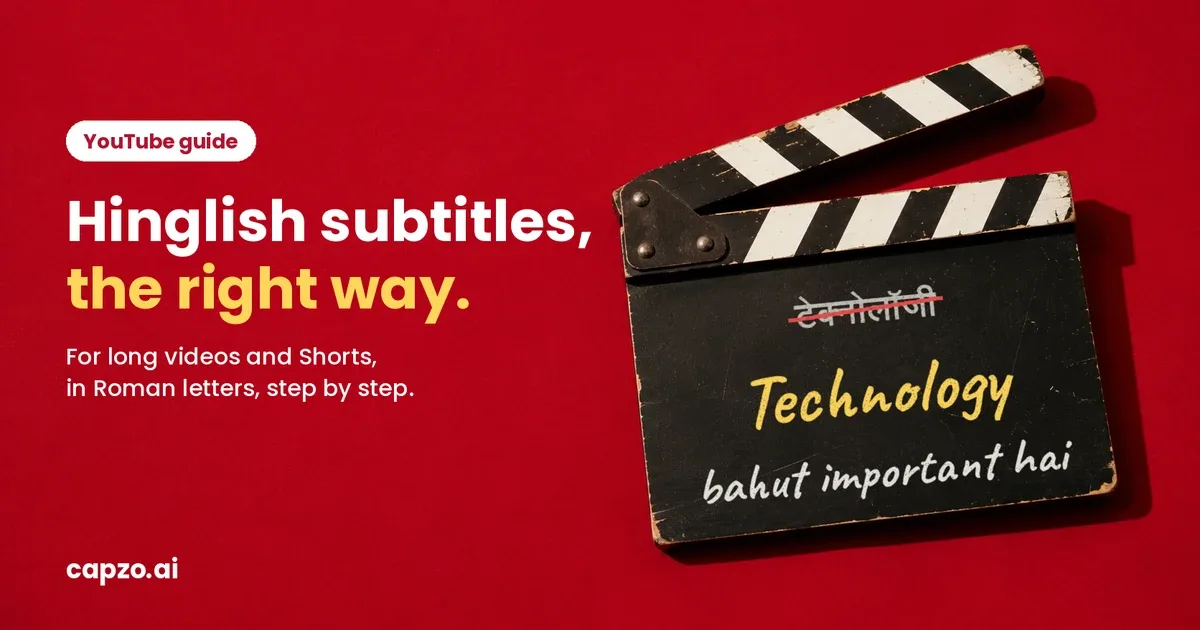
You speak Hinglish in your videos: half Hindi, half English, the way you talk every day. Then YouTube's automatic captions show up in Devanagari, or the English words in your sentences come out strangely spelled. Your viewers comment in Roman letters, but your subtitles look nothing like that.
The fix is to add your own Hinglish subtitles: a subtitle file written in Roman letters, uploaded in YouTube Studio. For Shorts, you can also put the captions inside the video itself.
This guide explains why YouTube's auto captions struggle with Hinglish, which script to choose, and how to add Hinglish subtitles to long videos and Shorts, step by step.
Why YouTube auto captions get Hinglish wrong
YouTube's Help Center says automatic captions are created in the video's default language only. A Hinglish video has two languages in almost every sentence, so YouTube writes all of it as one language. If your video language is Hindi, English words can come out in Devanagari or misspelled.
Example (illustrative): you say "Technology bahut important hai". With Hindi as the video language, automatic captions can write the whole line in Devanagari, as "टेक्नोलॉजी बहुत इम्पोर्टेंट है", even though your viewers would write it in Roman letters.
YouTube's Help Center also lists several languages spoken at once as one reason automatic captions may not be available at all. For the full explanation, see why auto-captions get Hinglish wrong.
Roman or Devanagari: which script for your YouTube audience?
If your viewers comment in Hinglish, using English letters, choose Roman script for your subtitles. It matches how they read and type. Choose Devanagari if your audience writes in Hindi script, or if your content is news, devotional or educational and aimed at Hindi-first viewers.
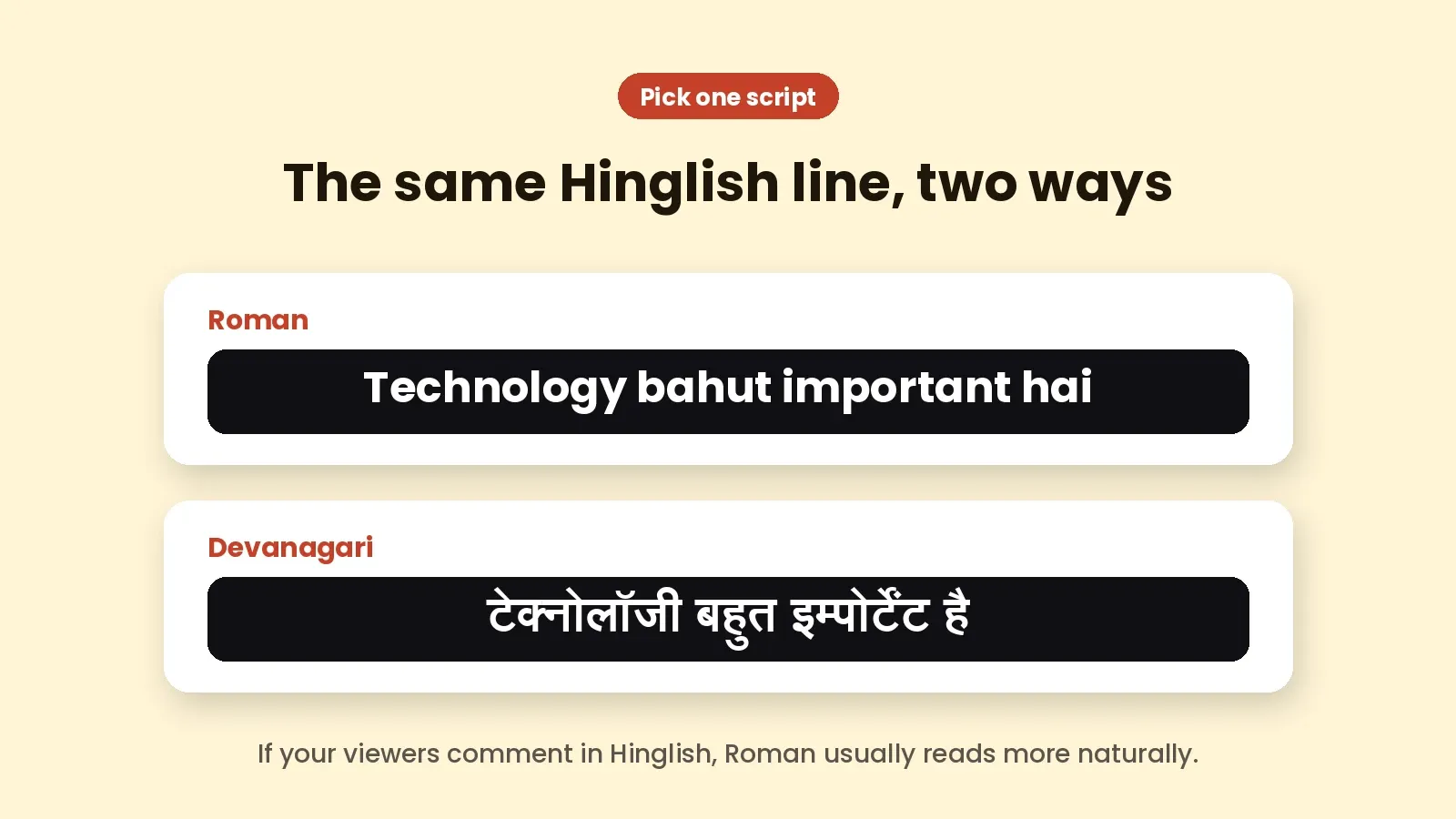
A quick way to decide: open your last few videos and look at the comments. If most people write "bahut badhiya" rather than "बहुत बढ़िया", go with Roman. Whichever you choose, use one script for the whole video.
Hindi is a big part of India's creator economy. A 2026 ISB–Hashfame report found that Hindi creators make up 42% of India's creator base. For more on writing Hindi in English letters, read our guide to Roman Hindi captions.
How to add Hinglish subtitles in YouTube Studio
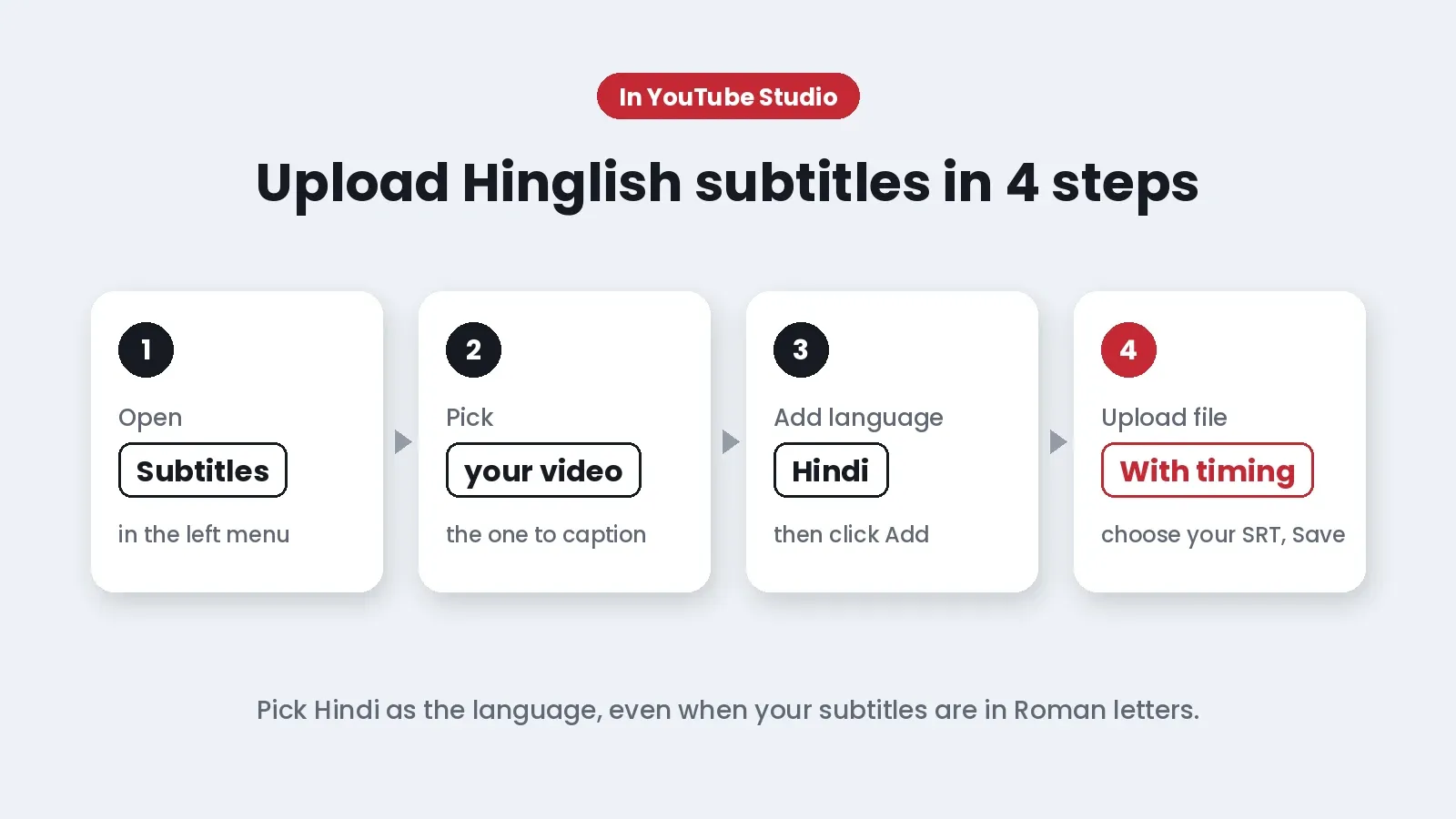
To add Hinglish subtitles in YouTube Studio, open Subtitles, select your video, click Add language and choose Hindi, then click Add under Subtitles. Select Upload file, choose With timing, select your SRT file and click Save. The steps below follow YouTube's Help Center.
Step 1: Open Subtitles in YouTube Studio
Sign in to YouTube Studio and select Subtitles from the left menu.
Step 2: Select your video
Click the video you want to add Hinglish subtitles to.
Step 3: Add a language
Click Add language and choose Hindi. Hinglish is Hindi with English words mixed in, so Hindi is the right language for the track, even when the subtitles are in Roman letters.
Step 4: Upload your SRT file
Under Subtitles, click Add, then Upload file. Choose With timing, select Continue, choose your SRT file and select Save.
You can also add subtitles while uploading a new video, according to YouTube's Help Center. If you change your mind later, you can edit the subtitles or upload a new file at any time from the same Subtitles page.
How to make a Hinglish SRT file with Capzo
To make a Hinglish SRT file, upload your video to a caption tool that handles mixed Hindi-English speech, choose Roman script, fix any words, and download the SRT. Capzo (capzo.ai) detects Hinglish automatically and writes Hindi in Roman or Devanagari, whichever you choose.
Capzo is an AI caption and subtitle generator for creators, in 100+ languages, including Hindi and Hinglish. It adds word-synced subtitles inside your video, or gives you a subtitle file for YouTube.
Step 1: Upload your video
Open the Hinglish caption generator and upload your video.
Step 2: Choose Roman script
Pick Roman so Hindi words appear in English letters ("kya haal hai"), the way your viewers write them.
Step 3: Fix words
Read every line. Check names, brand words and English words, and keep one spelling for common Hindi words (for example, always "nahi", never "nahin").
Step 4: Download the SRT file
Download the SRT file and upload it in YouTube Studio, as shown above. For a full walkthrough of the file itself, see how to make an SRT file for a Hindi or Hinglish video.
What you get on Capzo's Free plan: 5 minutes of captions per month, videos up to 2 minutes, 720p export, no watermark, and SRT and VTT subtitle files. That covers short clips and Shorts up to 2 minutes. For longer YouTube videos, you'll need a paid plan.
YouTube Shorts: burned-in captions or a subtitle track?
For Shorts, burn the captions into the video, so the text is part of the picture and every viewer sees it, even with captions turned off. For long videos, upload an SRT subtitle track instead, so viewers can switch captions on or off and you can edit them later.
| Option | Script | Effort | Edit after publishing? | On Shorts | Free? |
|---|---|---|---|---|---|
| YouTube auto captions | The video's default language only | None, but needs review | Yes, in YouTube Studio | Yes, when viewers turn captions on | Yes |
| Type subtitles in YouTube Studio | Any script you type | High: every line by hand | Yes | Shown only when viewers turn captions on | Yes |
| Upload an SRT file | Roman or Devanagari, your choice | Low, with a caption tool | Yes, edit in Studio or upload a new file | Shown only when viewers turn captions on | Yes; Capzo Free covers 5 min/month, videos up to 2 min |
| Burned-in captions | Roman or Devanagari, your choice | Low, with a caption tool | No: re-export and re-upload | Always visible | Yes on Capzo Free, for videos up to 2 min |
YouTube details from YouTube's Help Center; Capzo details from capzo.ai, checked November 2026.
Burned-in captions are the safer choice for Shorts, because the text is part of the video and doesn't depend on any viewer setting. Keep them in the middle of the frame, away from the buttons on the right and the title at the bottom.
Add an English subtitle track too (optional)
You can add a second subtitle track in English, so viewers who don't understand Hindi can follow your video. In YouTube Studio, click Add language again, choose English and upload an English SRT file. Your Hinglish track stays as it is.
Reaching viewers in other languages can matter. YouTube reported that creators who added multi-language audio tracks got over 25% of their watch time from views in a language other than the video's original one (September 2025). That figure is about dubbed audio, not subtitles, but it shows how much of an audience sits outside your main language.
To make the English file, translate your Hinglish subtitles. In Capzo, AI Subtitle Translation is available on the Pro Creator and Creator Studio plans; start from the Hindi to English subtitle translator.
FAQ
Does YouTube auto-caption Hinglish?
YouTube's Help Center doesn't mention Hinglish. It says automatic captions are created in the video's default language only, so a mixed Hindi-English video is written as one language, and auto captions may not appear at all when several languages are spoken at once.
Which language should I pick for a Hinglish subtitle file?
Choose Hindi when you add the language in YouTube Studio. Hinglish is Hindi with English words mixed in, so Hindi is the right track language, even when the subtitles are written in Roman letters.
Can I add Hinglish subtitles to YouTube Shorts?
Yes. The most reliable way is to burn the captions into the Short before you upload it, so every viewer sees them. You can also add a subtitle track in YouTube Studio, but viewers only see it when they turn captions on.
Roman or Devanagari for YouTube?
If your viewers comment in Hinglish using English letters, use Roman. If they write in Hindi script, or your content is aimed at Hindi-first viewers, use Devanagari. Use one script for the whole video.
Is there a free Hinglish subtitle generator?
Yes. Capzo's Free plan creates Hinglish subtitles in Roman or Devanagari, with SRT and VTT downloads and no watermark, for up to 5 minutes of captions a month and videos up to 2 minutes.
Can I edit subtitles after the video is live?
Yes. In YouTube Studio, open Subtitles, select your video and edit the track, or upload a new SRT file. Burned-in captions are different: to change them, you need to export and upload the video again.
Sources
- ISB–Hashfame, India's creator economy report (2026)
- YouTube Official Blog, multi-language audio (2025)
- YouTube Studio steps and automatic caption details come from YouTube's Help Center pages on adding subtitles and captions and on automatic captioning, checked November 2026.
- Capzo plan and feature details from capzo.ai, checked November 2026.
Hinglish subtitles that read the way you speak
Your viewers already read Hinglish in English letters every day. Capzo creates word-synced Hinglish subtitles in Roman or Devanagari, ready as an SRT file for YouTube or burned into your Shorts, with no watermark on any plan.
Try Hinglish subtitles on your next video.
Try Capzo free