
How to Make an SRT File for a Hindi or Hinglish Video (Free)

Your client wants “the SRT file”. YouTube asks for a subtitle file. Your editor in Premiere Pro or DaVinci Resolve needs captions on the timeline. And your video is in Hindi, or worse, half Hindi and half English.
An SRT file sounds technical, but it’s just a plain text file with numbers, timings and lines of dialogue. You can make one for free in three ways, and each one suits a different kind of video.
This guide shows you what an SRT file for a Hindi video looks like, walks you through all three methods, explains what goes wrong with Hinglish subtitles and how to fix it, and shows you how to upload the file to YouTube, Premiere Pro and DaVinci Resolve.
What is an SRT file?
An SRT file (SubRip Subtitle) is a plain text file that tells a video player which subtitle to show and when. Each subtitle has three parts: a number, a start and end time, and the text. A blank line separates one subtitle from the next. YouTube, Premiere Pro and DaVinci Resolve all accept SRT files.
Here’s what an SRT file for a Hinglish video looks like:
1
00:00:00,500 --> 00:00:02,800
Hello doston, aaj ki video mein

2
00:00:02,900 --> 00:00:05,400
main aapko ek simple trick dikhaunga

3
00:00:05,500 --> 00:00:08,000
jo har creator ko pata honi chahiye
And the same lines in Devanagari:
1
00:00:00,500 --> 00:00:02,800
हेलो दोस्तों, आज की वीडियो में

2
00:00:02,900 --> 00:00:05,400
मैं आपको एक सिंपल ट्रिक दिखाऊंगा
A few rules make the file work everywhere:
- Timings use the format hours:minutes:seconds,milliseconds, with a comma before the milliseconds.
- The arrow between start and end times is -->, with a space on each side.
- Numbers go in order (1, 2, 3…), and subtitles shouldn’t overlap in time.
- The file ends in .srt and is saved as UTF-8 text.
Subtitles aren’t only for viewers who can’t hear. A 2026 XR Extreme Reach survey of 3,000 viewers in five countries found that 79% of UK viewers use subtitles at least sometimes. In India, a 2026 ISB–Hashfame report found that Hindi creators make up 42% of the country’s creator base.
3 ways to make an SRT file for a Hindi video
You can make an SRT file for a Hindi video for free by typing it yourself in a text editor, downloading YouTube’s automatic captions from YouTube Studio, or using a caption tool that exports SRT. Typing suits very short clips, YouTube suits videos you publish there, and a tool is fastest for Hinglish.
| Text editor | YouTube Studio | Caption tool (Capzo) | |
|---|---|---|---|
| Cost | Free | Free | Free plan: 5 min/month |
| Speed | Slow: you type and time every line | Automatic captions, then review | Automatic, then review |
| Hindi support | Anything you type | Hindi is a supported auto-caption language | Hindi and Hinglish, auto-detected |
| Hinglish | Anything you type | Not stated; mixed languages can stop auto captions | Yes |
| Script choice | Anything you type | Not stated | Roman or Devanagari |
| Must upload to YouTube? | No | Yes | No |
| Best for | Clips under a minute | Videos you publish on YouTube | Reels, Shorts and client work |
YouTube details from YouTube Help, checked November 2026.
How to create an SRT file free in a text editor
To create an SRT file free by hand, open a plain text editor, type each subtitle as a number, a timing line and the text, leave a blank line between subtitles, and save the file as UTF-8 with a .srt extension. It costs nothing, but timing every line takes a long time.
Step 1: Open a plain text editor
Use Notepad on Windows or TextEdit on Mac. In TextEdit, switch to plain text first (Format > Make Plain Text). Don’t use Word or Google Docs, because they add formatting that breaks SRT files.
Step 2: Note the timings
Play your video and write down when each line starts and ends. As a rule of thumb, keep each subtitle on screen for about 1 to 6 seconds.
Step 3: Type each subtitle
Type the number, then the timing line (00:00:00,500 --> 00:00:02,800), then the text, then a blank line. Repeat for every subtitle.
Step 4: Save as UTF-8 with a .srt extension
Name the file something like my-video-hindi.srt, choose UTF-8 as the encoding, and save. If the editor adds .txt at the end, rename the file so it ends in .srt only.
Pros: free, works offline, and you control every word, script and spelling.
Cons: slow, easy to make timing mistakes, and impractical for anything longer than a short clip.
How to get a Hindi SRT file from YouTube Studio
To get a Hindi SRT file from YouTube Studio, upload your video with Hindi set as the video language, wait for automatic captions, fix them with Duplicate and edit, then download them with Options > Download subtitles. It’s free, but your video has to be on YouTube, and YouTube Help doesn’t say which file format the download uses.
Step 1: Upload the video and set the language to Hindi
In YouTube Studio, open Content, click your video, click Show more, and under Language and captions certification, choose Hindi. Click Save. Set this as early as you can, because YouTube Help doesn’t say whether changing the language later regenerates automatic captions.
Step 2: Wait for automatic captions
YouTube says automatic captions may not be ready right after upload, and processing time depends on how complex the audio is.
Step 3: Fix the captions
Select Subtitles in the left menu, click your video, select Edit next to Hindi, then Duplicate and edit. Correct each line and click Publish.
Step 4: Download the file
In Subtitles, click Edit for Hindi, then Options > Download subtitles. Check that the file name ends in .srt before you send it to a client or editor.
Pros: free, automatic, and Hindi is a supported language.
Cons: the video must be uploaded to YouTube first, YouTube Help doesn’t state Hinglish or Roman-script support, and automatic captions may not appear when several languages are spoken at once.
For the full walkthrough, including what to do when captions don’t appear, see our guide on getting YouTube auto subtitles in Hindi.
How to use an SRT subtitle generator for Hindi
An SRT subtitle generator for Hindi creates timed subtitles from your video automatically and exports them as an SRT file, without uploading anything to YouTube. It’s the fastest option for Hinglish, because a good tool detects mixed Hindi-English speech and lets you choose Roman or Devanagari script.
Capzo (capzo.ai) is an AI caption and subtitle generator for creators, in 100+ languages, including Hindi and Hinglish. Hinglish is detected automatically, and you choose whether Hindi words appear in Roman letters or Devanagari.
Step 1: Upload your video
Open the Hindi subtitle generator for Hindi videos, or the Hinglish caption generator for mixed Hindi-English videos, and upload your file.
Step 2: Choose your script
Pick Roman (“kya haal hai”) or Devanagari (“क्या हाल है”). Use one script for the whole video.
Step 3: Review the subtitles
Read every line before you export. Check names, brands, prices and English words inside Hindi sentences.
Step 4: Export as SRT
Download the SRT file. Free plan users can also export VTT, and TXT is available on paid plans.
What you get on Capzo’s Free plan: 5 minutes of captions per month, videos up to 2 minutes, 720p export, no watermark, and SRT and VTT subtitle files.
Need English subtitles too? AI Subtitle Translation is available on the Pro Creator plan (2 hours a month) and the Creator Studio plan (4.5 hours a month), from ₹1,199/month, billed yearly.
Pros: fast, handles Hinglish, lets you choose the script, and doesn’t need YouTube.
Cons: the Free plan covers 5 minutes a month and videos up to 2 minutes, and you should still review every line.
What goes wrong with Hinglish subtitles in SRT files
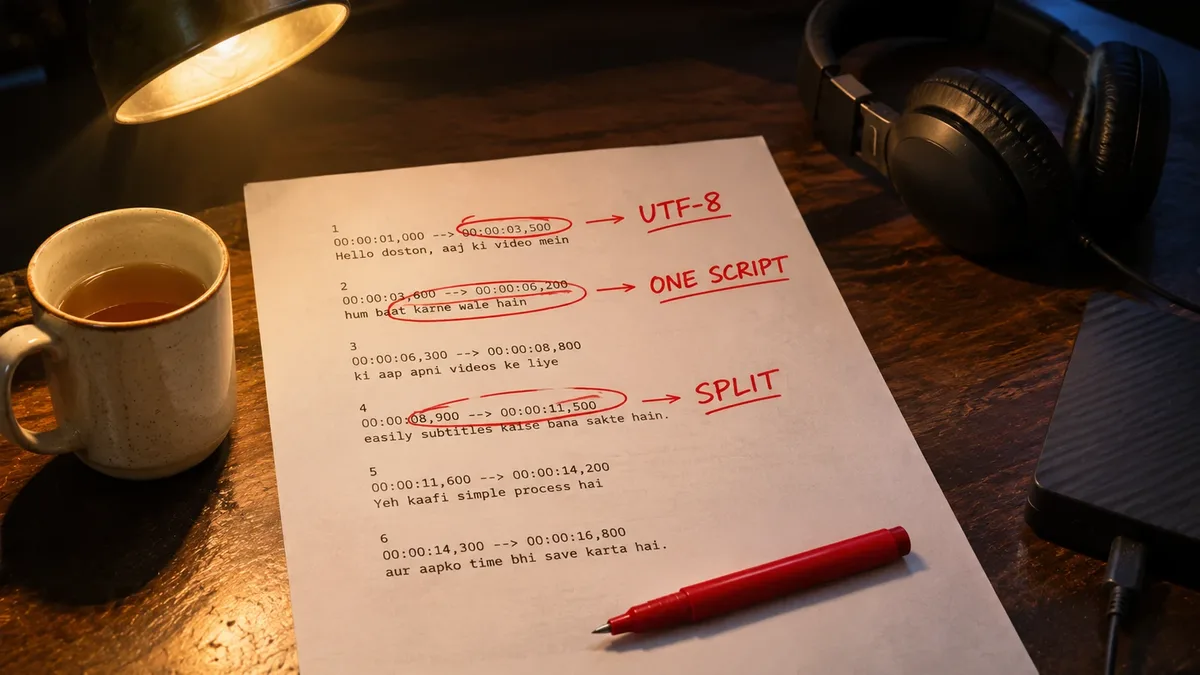
The most common problems with Hinglish subtitles in SRT files are Devanagari turning into question marks because the file wasn’t saved as UTF-8, Roman and Devanagari mixed in one line, inconsistent spellings, lines too long to read, and broken timing lines. Most take a minute to fix once you know what to look for.
| Problem | Why it happens | How to fix it |
|---|---|---|
| Devanagari shows as “????” or empty boxes | The file was saved in an encoding other than UTF-8 | Retype or regenerate the Hindi lines, then save the file with UTF-8 encoding |
| “Aaj हम try करेंगे” | Roman and Devanagari mixed in one line | Choose one script and use it for the whole file |
| “nahi” in one line, “nahin” in the next | No fixed spelling style | Pick one spelling for common words and use it everywhere |
| Subtitles that fill half the screen | Hinglish sentences run long | Keep each subtitle to two short lines and split the rest |
| File won’t import | A timing line uses a dot instead of a comma, or a blank line is missing | Use 00:00:02,800 format and leave one blank line between subtitles |
| English words misspelled inside Hindi lines | Auto captions mishear English words in Hindi speech | Check every English word, brand and name by hand |
Illustrative examples of common SRT errors.
Why do automatic captions get Hinglish wrong in the first place? We explain it in why auto-captions get Hinglish wrong.
How to upload an SRT file to YouTube, Premiere Pro and DaVinci Resolve
To upload an SRT file to YouTube, open Subtitles in YouTube Studio, add Hindi as a language and choose Upload file. In Premiere Pro, import the SRT like any media and drag it into your sequence. In DaVinci Resolve, right-click the Media Pool and choose Import Subtitle.
YouTube
- In YouTube Studio, select Subtitles from the left menu and click your video.
- Click Add language and choose Hindi.
- Under Subtitles, click Add, then Upload file.
- Choose With timing, click Continue, select your SRT file and click Save.
SRT is one of YouTube’s basic supported subtitle formats, according to YouTube Help.
Premiere Pro
- Import the SRT file into your project like any other piece of media.
- Drag it from the Project panel into your sequence.
- Premiere Pro creates a new caption track and places the captions on it.
DaVinci Resolve
- Open the Media Pool.
- Right-click a bin or an empty area of the Media Pool and choose Import Subtitle.
- Select your SRT file and click Open.
- The file appears as a subtitle clip in the Media Pool. Drag it onto a subtitle track on your timeline.
DaVinci Resolve’s manual lists SRT among its supported subtitle formats.
FAQ
What is an SRT file for a Hindi video?
It’s a plain text subtitle file with a number, a start and end time, and the subtitle text for each line. It works for Hindi in Roman letters or Devanagari, as long as the file is saved as UTF-8.
How do I create an SRT file free?
Type the subtitles in a plain text editor and save the file as UTF-8 with a .srt extension, download YouTube’s automatic captions from YouTube Studio, or use a caption tool with a free plan that exports SRT.
Why does my Hindi SRT file show strange symbols?
The file was most likely saved in an encoding other than UTF-8, which turns Devanagari into question marks or boxes. Re-saving won’t bring the text back, so regenerate or retype the Hindi lines, then save the file as UTF-8 and upload it again.
Can I make Hinglish subtitles in SRT?
Yes. SRT files can hold any text, so Hinglish works in Roman letters or Devanagari. Use one script and one spelling style for the whole file, and keep each subtitle to two short lines.
Can I download Hindi auto captions from YouTube?
Yes. In YouTube Studio, open Subtitles, click Edit next to Hindi, then Options and Download subtitles. Check that the file ends in .srt before using it elsewhere.
Does Capzo export SRT files for free?
Yes. Capzo’s Free plan exports SRT and VTT subtitle files with no watermark, for up to 5 minutes of captions per month and videos up to 2 minutes.
Sources
- Business Wire, XR Extreme Reach subtitle survey (2026)
- ISB–Hashfame, Understanding the Canvas of India’s Creator Economy, ISB press release (July 14, 2026)
- YouTube details come from YouTube Help’s pages on adding subtitles and captions, editing or removing captions, using automatic captioning, changing the language of your uploaded video, and supported subtitle and closed caption files, checked November 2026.
- Premiere Pro details come from Adobe’s help page on importing caption files, and DaVinci Resolve details from its official user manual, checked November 2026.
Get an SRT file that’s ready to upload
Typing subtitles by hand works for a short clip, and YouTube works if you publish there. For Hindi and Hinglish videos you need fast, in the right script and ready for any editor, Capzo creates word-synced subtitles and exports a clean SRT file, with no watermark on any plan.
Get accurate Hindi and Hinglish captions with Capzo.
Try Capzo free