
How to Get YouTube Auto Subtitles in Hindi (and Fix Them)
You’re watching a great video, but it’s in English, Tamil or Korean, and you want Hindi subtitles. Or you’re a creator: you uploaded a Hindi video, and the auto captions are either missing or full of mistakes.
Both problems have the same starting point: YouTube’s own caption tools. They’re free, built in, and they support Hindi, as long as you know where to tap.
This guide covers both sides. First, how viewers get YouTube auto subtitles in Hindi on any video. Then, how creators add Hindi auto captions in YouTube Studio and fix them when they come out wrong.
Does YouTube have auto subtitles in Hindi?
Yes. Hindi is one of the languages YouTube supports for automatic captions, on both long-form videos and Shorts. Viewers can also auto-translate existing captions into Hindi. YouTube Help doesn’t state support for Hinglish or Hindi captions in Roman letters.
Here’s what YouTube Help says, checked November 2026:
| Feature | What YouTube Help says |
|---|---|
| Hindi automatic captions | Yes, Hindi is on the supported list |
| Other Indian languages | Bengali, Gujarati, Kannada, Malayalam, Marathi, Punjabi, Tamil and Telugu are also listed |
| Automatic captions on Shorts | Yes, same languages as long-form videos |
| Auto-translate for viewers | Yes, under Subtitles/CC |
| Editing automatic captions | Yes, in YouTube Studio |
| Hinglish (mixed Hindi-English) | Not stated. Auto captions may not be available when multiple languages are spoken at once |
| Hindi captions in Roman letters | Not stated |
| Uploading your own subtitle file | Yes. SRT is a basic format and VTT is an advanced one |
Based on YouTube Help pages on automatic captioning, caption settings, editing captions and supported caption files, checked November 2026.
Hindi captions matter for reach. A July 2026 ISB–Hashfame report found that Hindi creators make up 42% of India’s creator base.
How to turn on YouTube Hindi captions
To turn on YouTube Hindi captions, open the video and click or tap the Closed captions (CC) button in the player. If the video has Hindi captions, select Hindi from the caption language list. If you don’t see the CC button, the video has no captions available.
On a computer
- Open the video.
- Click the Closed captions (CC) icon at the bottom right of the player.
- To pick the language, click the Settings icon, then Subtitles/CC, and select Hindi.
On the YouTube app
- Tap the video player once to show the controls.
- Tap Closed captions to turn captions on.
- To change the language, tap More at the top right of the player, then Captions, and select Hindi.
Tip: To keep captions on for every video in the app, tap your profile picture, then Settings > Captions > Show captions.
How to use YouTube auto translate to Hindi
If a video has captions but none in Hindi, use YouTube auto translate. Open Subtitles/CC, choose Auto-translate, and select Hindi. YouTube then machine-translates the existing captions into Hindi, so they work best for clear speech and simple sentences.
Step 1: Turn on captions
Click or tap the CC button. Auto-translate only works when the video already has captions.
Step 2: Open the caption language list
On a computer, click Settings > Subtitles/CC. On the app, tap More > Captions.
Step 3: Choose Auto-translate
If Hindi isn’t in the list, select Auto-translate.
Step 4: Select Hindi
Pick Hindi from the list of languages.
Expect some odd phrasing with jokes, slang and names. For translations you need to publish, such as Hindi videos with English subtitles, our guide on translating Hindi videos into English subtitles explains the better options.
Why are YouTube Hindi subtitles not showing?
YouTube Hindi subtitles usually don’t show because the video has no captions yet, the creator’s video language isn’t set to Hindi, or YouTube couldn’t create automatic captions. YouTube Help lists poor audio, long silence at the start, overlapping speakers and mixed languages as reasons.
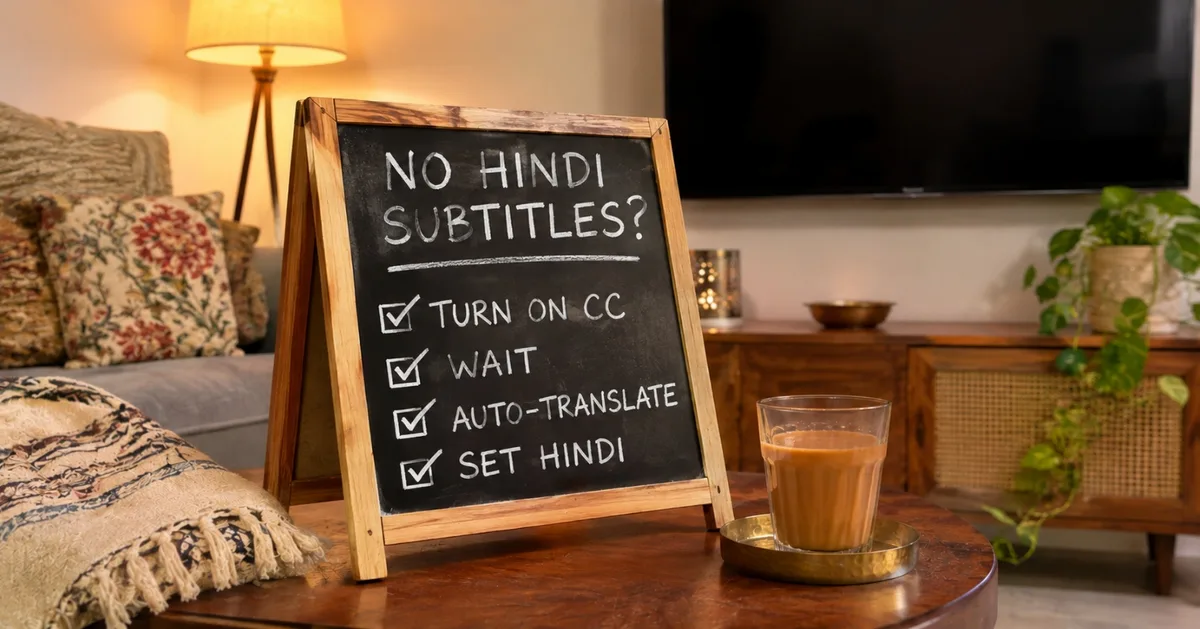
| What you see | Likely reason (per YouTube Help) | What to do |
|---|---|---|
| No CC button | The video has no captions | Viewers can’t fix this; creators should add captions |
| No captions right after upload | Automatic captions are still processing | Wait. Processing time depends on how complex the audio is |
| Captions in the wrong language | Automatic captions are created in the video’s default language | Creators: set the video language to Hindi |
| No automatic captions at all | Poor sound, long silence at the start, overlapping speakers, mixed languages, an unsupported language, or the video is too long | Improve audio, trim the silence, or upload a subtitle file |
| Hindi missing from the language list | Only existing caption tracks are listed | Use Auto-translate > Hindi |
The “mixed languages” reason matters for Hinglish creators: if you switch between Hindi and English in the same video, YouTube may not create automatic captions at all.
How to add YouTube auto subtitles in Hindi to your video
To add YouTube auto subtitles in Hindi to your video, set the video language to Hindi in YouTube Studio, then wait for YouTube to process the captions. They’re published automatically when ready. After that, review them under Subtitles and fix any mistakes before your audience sees them.
Captions aren’t just for viewers who can’t hear. In a Verizon Media and Publicis Media study (2019, 5,616 US adults), 80% of caption users had no hearing impairment.
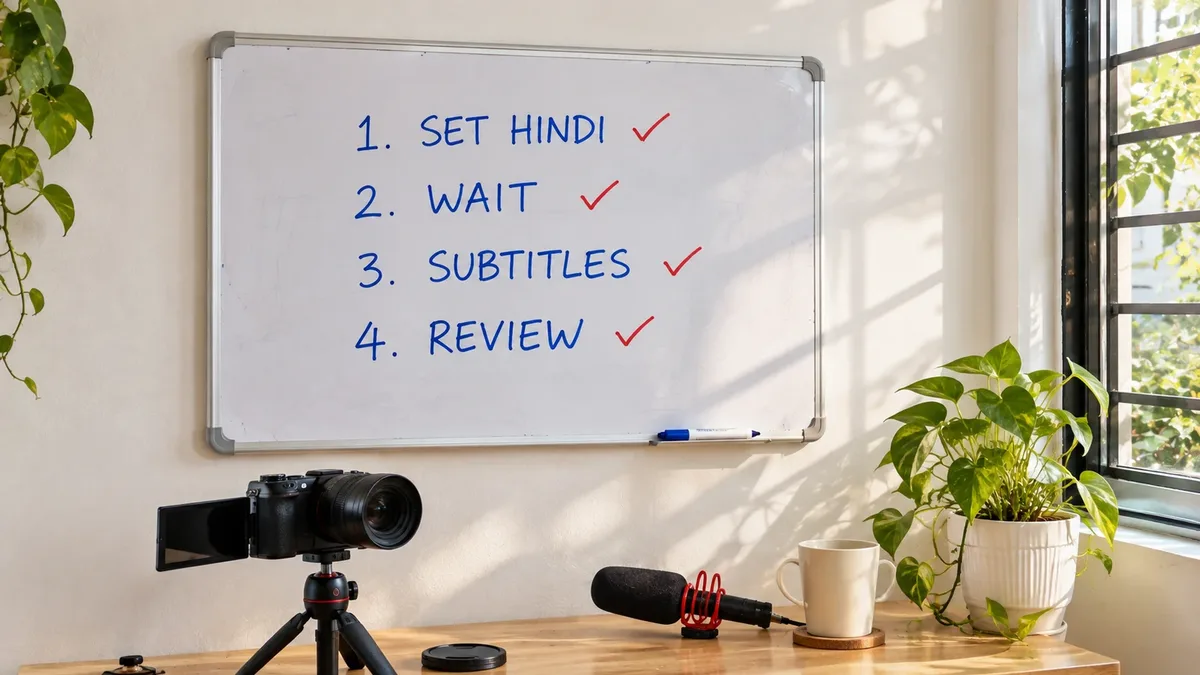
Step 1: Set the video language to Hindi
Sign in to YouTube Studio and select Content from the left menu. Click your video, scroll down, click Show more, and under Language and captions certification, choose Hindi. Click Save. For best results, set the language when you upload, because YouTube Help doesn’t say whether changing it later regenerates automatic captions.
Step 2: Wait for processing
Automatic captions may not be ready right after upload. YouTube says processing time depends on how complex the audio is.
Step 3: Find the captions
In YouTube Studio, select Subtitles from the left menu and click your video. Your automatic Hindi captions appear in the Subtitles column.
Step 4: Review before you promote the video
Watch the video with the captions on and note every mistake, especially names, numbers and English words inside Hindi sentences. Then fix them, as shown in the next section.
How to fix Hindi auto captions in YouTube Studio
To fix Hindi auto captions, open Subtitles in YouTube Studio, click your video, select Edit next to Hindi, then Duplicate and edit. Correct each line, adjust timings if needed, and click Publish. Your edits create a new caption track that includes your revisions.
Step 1: Open the caption editor
In YouTube Studio, select Subtitles, click your video, and select Edit in the Subtitles column for Hindi.
Step 2: Choose Duplicate and edit
For automatic captions, select Duplicate and edit, then Continue.
Step 3: Fix the text
Click any line in the caption track panel and correct it. Check brand names, prices, English words and any words split in two.
Step 4: Fix the timing
If a line appears too early or too late, adjust the two timestamp boxes next to it. If you don’t see timestamps, select Edit timings.
Step 5: Publish
Select Publish. To work offline instead, click Options > Download subtitles, edit the file in a text editor, and upload it again.
If the automatic captions are badly wrong, it’s often faster to delete them (Options > Delete) and upload a clean SRT file instead.
Need the captions as a file for an editor or client? Here’s how to make an SRT file for a Hindi video.
When to use a caption tool instead
Use a caption tool when YouTube’s Hindi auto captions need too many fixes, when your video is in Hinglish, or when you want captions burned into Shorts so every viewer sees them without tapping CC. YouTube Help doesn’t state Hinglish or Roman-script support for automatic captions.
Capzo (capzo.ai) is an AI caption and subtitle generator for creators, in 100+ languages, including Hindi and Hinglish. It handles mixed Hindi-English speech in one pass, which is exactly where auto captions tend to slip (here’s why auto-captions get Hinglish wrong).
| If you need… | YouTube | Capzo |
|---|---|---|
| Hindi auto captions | Yes | Yes |
| Hinglish (mixed Hindi-English) | Not stated; mixed languages can stop auto captions | Yes, detected automatically |
| Hindi in Roman letters | Not stated | Yes, Roman or Devanagari |
| Captions burned into the video | No, viewers turn CC on | Yes, MP4 with captions inside the video |
| Subtitle file | Download from YouTube Studio | SRT, VTT and TXT |
| Hindi to English subtitles | Auto-translate, for viewers only | AI Subtitle Translation, Pro Creator and Creator Studio plans only |
| Watermark | Not applicable | None, on any plan |
YouTube details from YouTube Help, checked November 2026.
What you get on Capzo’s Free plan: 5 minutes of captions per month, videos up to 2 minutes, 720p export, no watermark, and SRT and VTT subtitle files.
Two ways to use it with YouTube:
- For long videos: create Hindi captions with the Hindi subtitle generator, export an SRT file, and upload it in YouTube Studio under Subtitles > Add language > Add > Upload file.
- For Shorts: export an MP4 with the captions burned in, so they show for every viewer, even with CC off.
Want English subtitles for a Hindi video too? The Hindi to English subtitle translator does it on the Pro Creator and Creator Studio plans.
FAQ
Does YouTube auto-generate Hindi captions?
Yes. Hindi is one of the languages YouTube supports for automatic captions, on both long-form videos and Shorts. Captions may take some time to appear after upload, depending on how complex the audio is.
How do I translate YouTube subtitles to Hindi?
Turn on captions, open Subtitles/CC, choose Auto-translate and select Hindi. This only works when the video already has captions, and the result is a machine translation.
Why are Hindi subtitles not showing on YouTube?
The video may have no captions, captions may still be processing, or the video language may not be set to Hindi. YouTube also lists poor audio, long silence, overlapping speakers and mixed languages as reasons automatic captions don’t appear.
Can I edit YouTube’s auto-generated Hindi captions?
Yes. In YouTube Studio, go to Subtitles, click your video, select Edit next to Hindi, then Duplicate and edit. Fix the text and timing, then click Publish.
Does YouTube support Hinglish auto captions?
YouTube Help doesn’t mention Hinglish. It says automatic captions may not be available when multiple languages are spoken at once, so Hinglish videos may need edited or uploaded captions.
Can I upload my own Hindi subtitle file to YouTube?
Yes. In YouTube Studio, open Subtitles, add Hindi as a language and choose Upload file. SRT is one of YouTube’s basic supported formats.
Sources
- ISB–Hashfame, Understanding the Canvas of India’s Creator Economy, ISB press release (July 14, 2026)
- Streaming Media, 80% of Video Caption Users Aren’t Hearing Impaired, Finds Verizon (2019)
- YouTube details come from YouTube Help’s pages on using automatic captioning, managing caption settings, editing or removing captions, adding subtitles and captions, changing the language of your uploaded video, and supported subtitle and closed caption files, checked November 2026.
Get accurate Hindi captions on every video
YouTube’s free tools are a good start, but your captions should read right the first time, whether you speak Hindi, Hinglish or both. Capzo adds word-synced captions in Roman or Devanagari, as an SRT for YouTube or burned into your Shorts, with no watermark on any plan.
Get accurate Hindi and Hinglish captions with Capzo.
Try Capzo free