
How to Add Captions to Instagram Reels Without CapCut (2026)
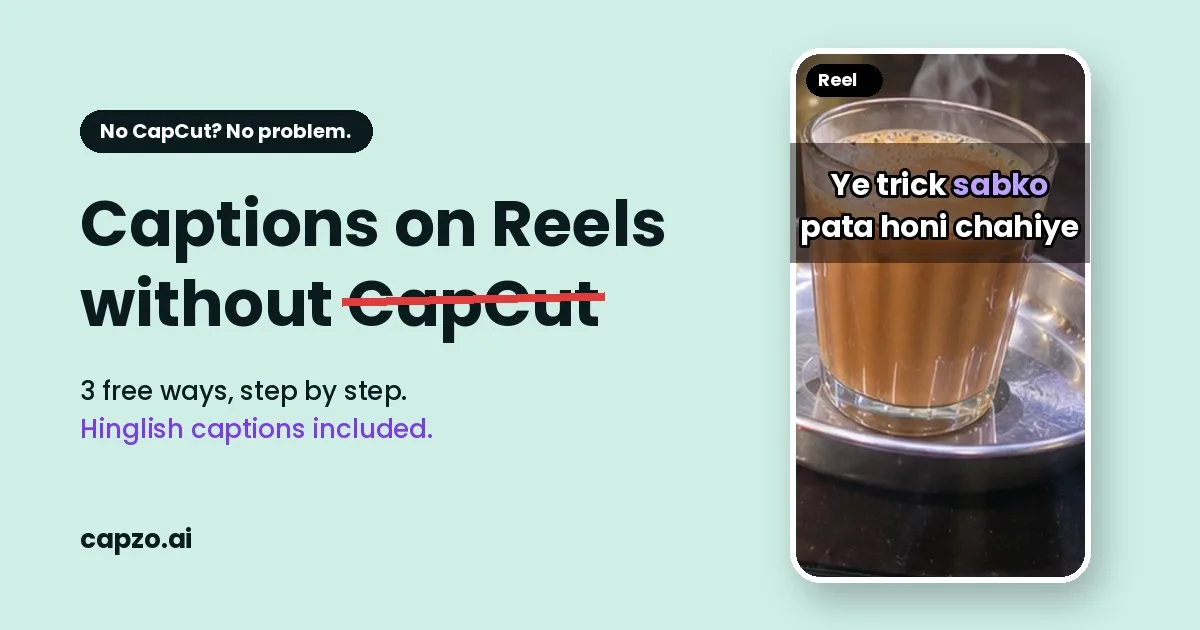
You found the perfect caption style in a tutorial, opened the app store, and CapCut wasn’t there. If you’re in India, that’s not a glitch: CapCut has been blocked since 2020.
So how do you add captions to your Reels now? It’s one of the most common questions Indian creators ask, especially if you speak Hinglish and want your captions to actually get the words right.
This guide covers three ways to caption Instagram Reels without CapCut, from Instagram’s own free tools to a dedicated caption tool, with steps for each and a quick comparison.
Why can’t you use CapCut in India?
You can’t use CapCut in India because the Indian government blocked it in 2020, along with dozens of other apps. It isn’t available in Indian app stores, so creators need a different app or tool to add captions to Reels.
CapCut was one of 47 apps banned by India in July 2020, and it hasn’t returned since. If you want a full list of options, see our guide to CapCut alternatives for captions.
The good news: captions are worth the switch. A 2026 XR Extreme Reach survey of 3,000 viewers in five countries found 79% of UK viewers use subtitles at least sometimes, while 81% of all respondents reported no hearing difficulty.
Method 1: Instagram’s built-in captions
Instagram’s built-in captions let you auto-generate text on your Reel with the Captions sticker, for free, inside the Instagram app. It’s the fastest option and works well for clear speech, but mixed Hindi-English lines often need fixing and styling options are limited.
Step 1: Record or upload your Reel
Open Instagram, tap + and choose Reel. Record a new clip or pick one from your gallery.
Step 2: Add the Captions sticker
In the editing screen, tap the sticker icon and choose Captions. Instagram transcribes your audio automatically.
Step 3: Fix the text
Tap the captions to edit them. Instagram lists each word separately, so you can tap any word to fix spelling, punctuation or a wrong transcription. Check names, brands and Hindi words first.
Step 4: Pick a style and position
Change the caption style and colour, then drag the captions into the middle of the screen, away from the buttons at the bottom.
Step 5: Share
Add your post caption and hashtags as usual, and share the Reel.
Best for: quick Reels with clear speech, when speed matters more than styling.
Method 2: The Instagram Edits app
Instagram Edits is Meta’s free video editor for Reels. It generates captions automatically, offers Devanagari fonts, and its App Store listing says it exports “in 4K with no watermark”. Like most auto-caption tools, mixed Hindi-English lines may still need fixing.
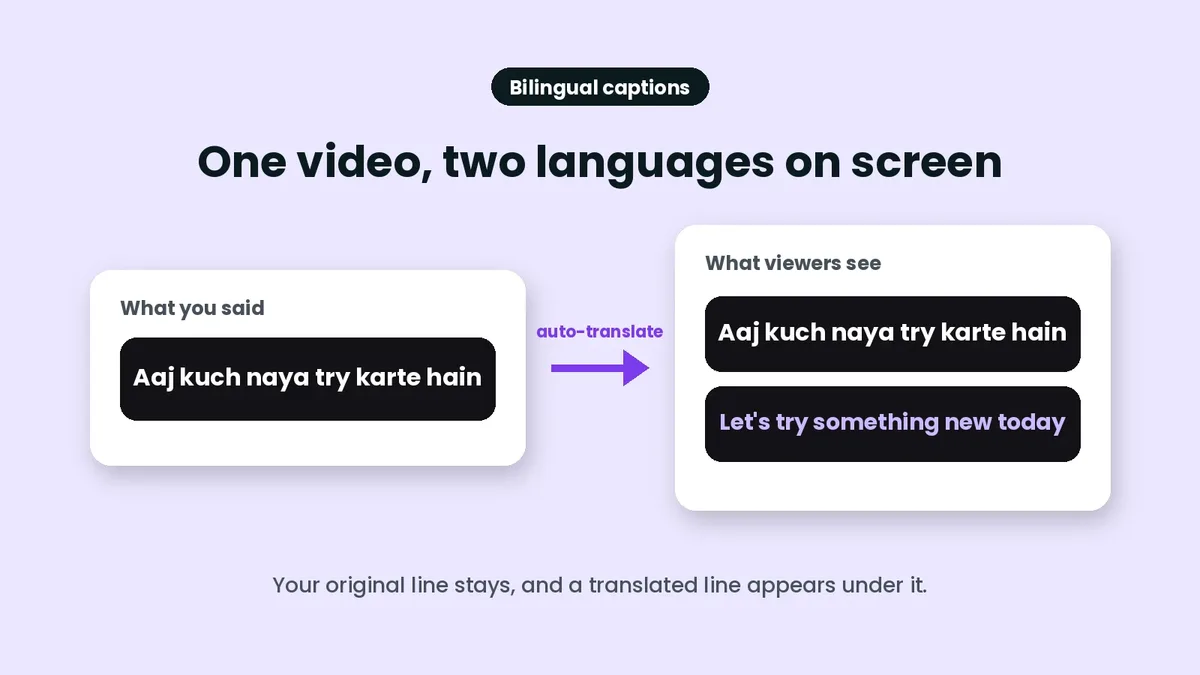
In July 2026, Edits also added bilingual captions that automatically translate your captions into a second language, with 15 languages supported.
Step 1: Import your clip
Open Edits, start a new project and add your video.
Step 2: Generate captions
Tap Captions in the toolbar and let Edits create the captions automatically.
Step 3: Edit and style
Correct any mistakes, then choose a font and style. Since November 2025, Edits also has Indian fonts, so you can style captions in Devanagari if you want Hindi in Hindi script.
Step 4: Export and post
Export the video and share it straight to Instagram.
Best for: creators who want more control than the Captions sticker, without leaving Meta’s apps.
Captioning in Hindi or Hinglish? Here’s how to add and fix Hindi captions in Instagram Edits.
Method 3: A caption tool like Capzo
A dedicated caption tool gives you the most accurate captions for mixed-language speech. Capzo (capzo.ai) adds word-synced subtitles inside your video in 100+ languages, including Hindi and Hinglish, with no watermark on any plan, including Free.
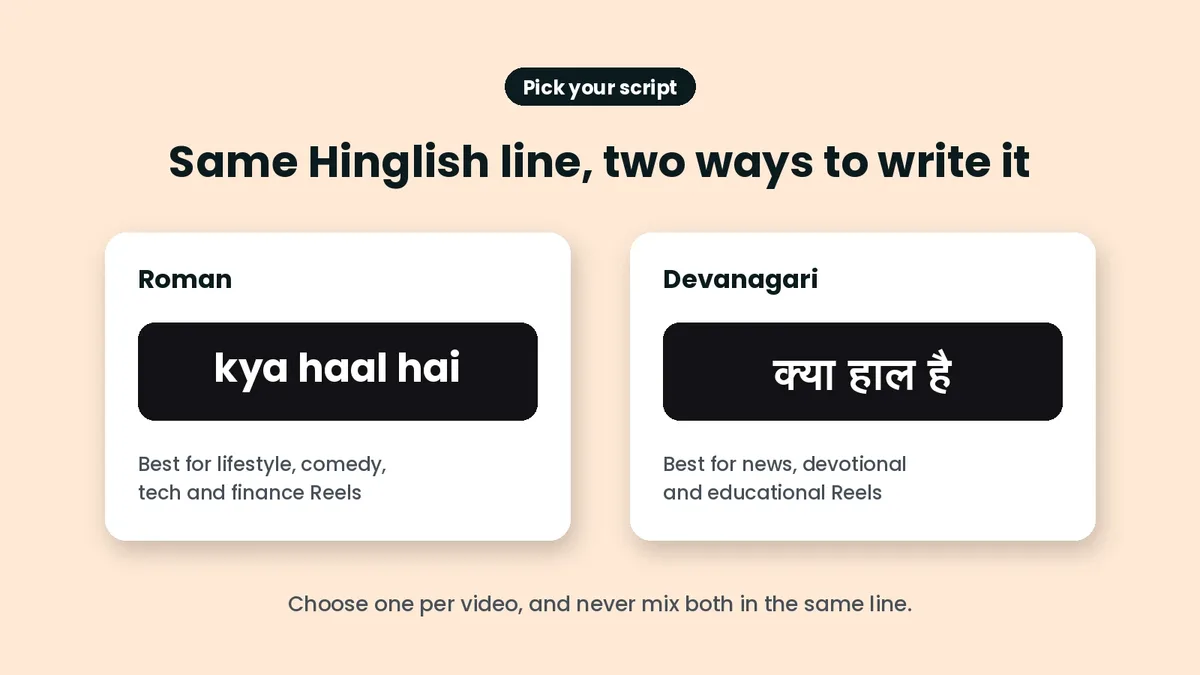
Its Hinglish caption generator detects mixed Hindi-English speech automatically and lets you choose Roman (“kya haal hai”) or Devanagari ("क्या हाल है") script.
Step 1: Upload your Reel
Upload your vertical video (9:16) in MP4 or MOV.
Step 2: Let Capzo detect the language
Hinglish is detected automatically, so you don’t have to choose between “Hindi” and “English”.
Step 3: Pick Roman or Devanagari
Roman usually suits lifestyle, comedy, tech and finance Reels; Devanagari suits news, devotional and educational content.
Step 4: Review and style
Check names, brands and numbers, then pick a style that matches your page.
Step 5: Export and post
Export an MP4 with captions burned in, then upload it to Instagram as a Reel. Need subtitle files too? Capzo also exports SRT, VTT and TXT.
Free plan: 5 minutes of captions per month, videos up to 2 minutes, 720p, no watermark.
For the full workflow, see our guide on adding Hindi and Hinglish captions to Reels and Shorts.
Which method should you use?
Use Instagram’s built-in captions for quick Reels with clear speech, Instagram Edits if you want free styling and Devanagari fonts inside Meta’s apps, and Capzo if you speak Hinglish or want accurate, styled captions with subtitle files. VN is another free option if you want a full phone editor.
How we checked: features below come from news coverage of each update and each app’s official pages and app-store listings, checked November 2026.
| Feature | Instagram captions | Instagram Edits | Capzo | VN |
|---|---|---|---|---|
| Free | Yes | Yes, with in-app purchases | Yes, Free plan (5 min/month) | Yes, with in-app purchases |
| Watermark | None | None | None, on any plan | None |
| Hinglish | — | — | Detected automatically; Roman or Devanagari | — |
| Caption styles | Style and colour options | Fonts and styles, including Devanagari | Custom styles | Auto captions with templates |
| Subtitle file (SRT/VTT) | No | — | Yes, SRT, VTT and TXT | — |
“—” means the app doesn’t mention this feature on its official pages or in its app-store listing.
Tips for readable Reels captions
Readable Reels captions are short, placed in the safe zone, use one highlight colour and are always proofread. These four habits matter more than which app you use.
- 2–4 words at a time. Viewers read Reels in a fast scroll. “Ye trick / sabko pata honi chahiye” beats one long line.
- Stay in the safe zone. Keep captions in the middle third of the screen. The bottom is covered by your post caption, username and buttons, and the right edge by the like and share icons.
- One highlight colour. Pick one colour for the key word in each line and stick to it in every Reel. More colours look busy.
- Proofread every time. Check names, brands, prices and Hinglish words before posting. One wrong word in a sponsor’s name can cost you the deal.
Sources
- Inc42, Xiaomi Browser, ByteDance’s CapCut among 47 Chinese apps banned by India (2020)
- XR Extreme Reach, Global Accessibility Report (2026)
- Zee Business, Instagram releases auto-captioning sticker in Stories; here’s how it will work
- Indian Television, Instagram expands Edits app with bilingual captions (2026)
- exchange4media, Instagram introduces local voice translations and fonts in India (2025)
- App details for Instagram, Instagram Edits and VN come from each app’s official pages and app-store listings, checked November 2026.
FAQ
Is CapCut banned in India?
Yes. CapCut has been blocked in India since 2020, when it was banned along with dozens of other apps. It isn’t available in Indian app stores.
How do I add captions to Instagram Reels without CapCut?
Use Instagram’s Captions sticker, the free Instagram Edits app, or a caption tool like Capzo. All three can add captions to your Reel without CapCut.
How do I add Hinglish captions to Reels?
Use a tool that handles mixed Hindi-English speech, like Capzo. It detects Hinglish automatically and lets you choose Roman or Devanagari script, then exports an MP4 you can post as a Reel.
Can I fix mistakes in Instagram’s auto-captions?
Yes. Instagram lists each word of the captions separately, so you can tap any word to fix its spelling, punctuation or transcription before posting.
Is Instagram Edits free?
Yes. Edits is free with in-app purchases, and its App Store listing says it exports videos in 4K with no watermark.
Which free app adds captions to Reels without a watermark?
Instagram’s Captions sticker, Instagram Edits, Capzo and VN all let you add captions to Reels without a watermark on their free options.
Caption your next Reel without CapCut
You don’t need CapCut to make Reels people actually watch. Capzo adds accurate, word-synced captions inside your video, in Hinglish, Hindi or 100+ other languages, with no watermark on any plan.
Join 50K+ creators who’ve captioned 1M+ videos with Capzo.
Try Capzo free